How-to: Customize the “Forgot your password?” Link in the UCS Portal Login Page for Self-Service
How can the link target (href) of the “Forgot your password?” option on the Univention Corporate Server (UCS) login page be modified for example, to redirect users to an external self-service or password management system?
Background
In Univention Corporate Server, the “Forgot your password?” link on the initial login page is automatically added by the univention-self-service package. By default, this link redirects users to the UCS internal self-service password reset page.
This behavior is defined in the file:
/usr/share/univention-web/js/umc/hooks/passwordreset.js
Code excerpt:
// add "Forgot password?" link to login page
dialog.addLinkFromUcr('forgot_your_password', {
	text: _('Forgot your password?'),
	href: '/univention/selfservice/#/selfservice/passwordforgotten'
});
The link parameters including visibility, text, and destination (href), are controlled by Univention Configuration Registry (UCR) variables under the namespace umc/login/links/.
Investigation
UCR Information for “forgot_your_password”
ucr search --brief forgot
umc/login/links/forgot_your_password/enabled: true
ucr info umc/login/links/forgot_your_password/enabled
umc/login/links/forgot_your_password/enabled: true
 If a variable in the format 'umc/login/links/.*/enabled' is deactivated, then the given link is no longer shown on the login page. E.g. 'umc/login/links/how_do_i_login/enabled=false'.
 Categories: management-umc
 Default: (not set)
 Type: str
You can list existing configuration options using:
ucr search --brief umc/login/links/
Example output:
umc/login/links/.*/enabled: <empty>
umc/login/links/.*/href: <empty>
umc/login/links/.*/target: <empty>
umc/login/links/.*/text: <empty>
umc/login/links/.*/tooltip: <empty>
umc/login/links/forgot_your_password/enabled: true
umc/login/links/how_do_i_login/enabled: true
umc/login/links/login_without_sso/enabled: true
The key setting for this use case is:
umc/login/links/forgot_your_password/href
By default, this value is unset, which means the UCS self-service link is used as hardcoded in passwordreset.js.
Configuration:
To override the default destination and define a custom redirect (for example, to an external password management portal), create or modify the following UCR variable with the full fqdn or like in the example:
ucr set umc/login/links/forgot_your_password/href='/metrics-prometheus/graph'
This will replace the default link and point it to the defined URL.
You can verify the configuration with:
ucr search --brief umc/login/links/forgot_your_password/
Example result:
umc/login/links/forgot_your_password/enabled: true
umc/login/links/forgot_your_password/href: /metrics-prometheus/graph
Result
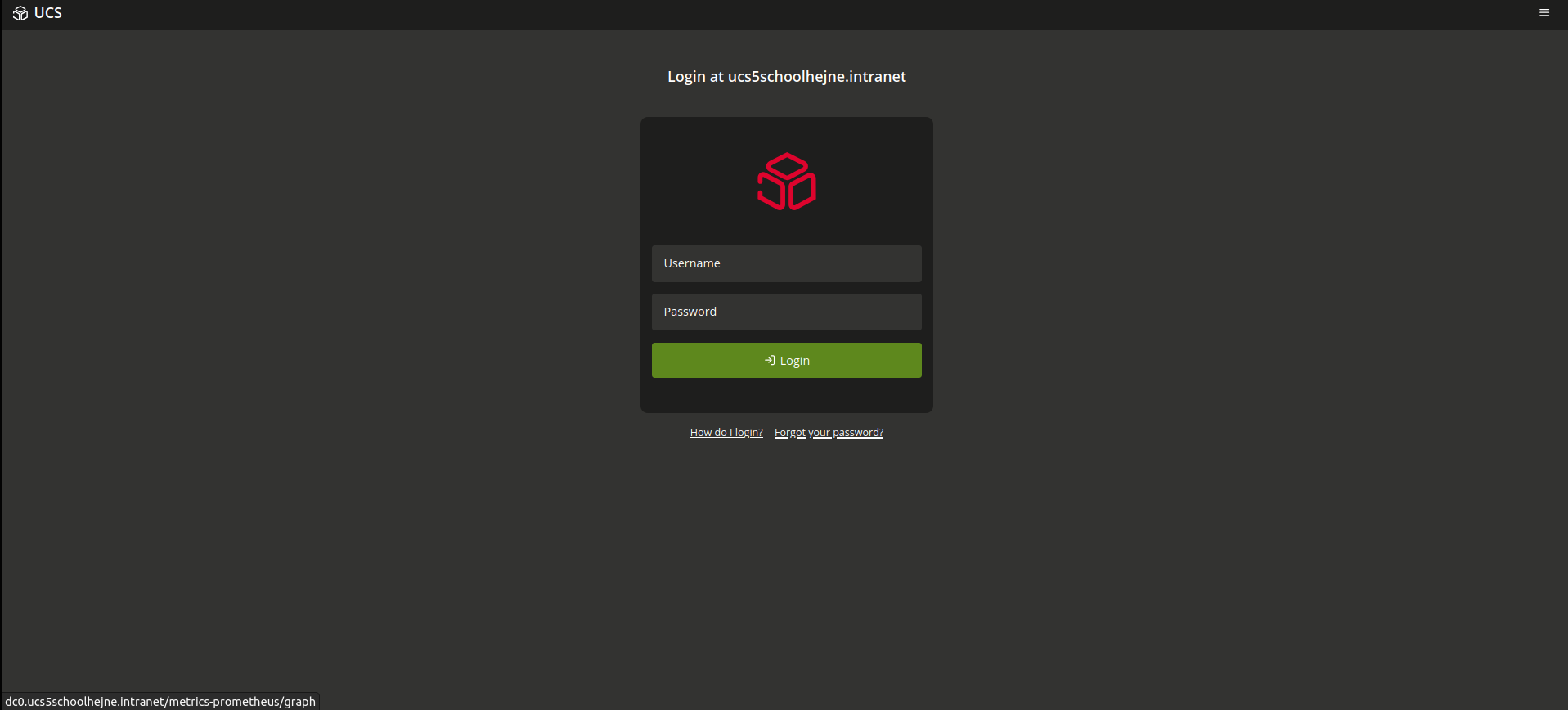
After setting this UCR variable, the “Forgot your password?” link on the UCS portal login page will redirect to the new specified target instead of the default self-service page.
In the bottom left-corner, you will see the new setting, when you hover over the text, Forgot your password?.
The changes are stored in:
/var/www/univention/meta.json
Example:
  "domainname": "ucs5schoolhejne.intranet",
  "favicon": null,
  "feedbackAddress": "feedback@univention.de",
  "feedbackSubject": "[UMC-Feedback] Traceback",
  "fqdn": "dc0.ucs5schoolhejne.intranet",
  "has_certificates": true,
  "hostname": "dc0",
  "login_links": {
    "forgot_your_password/enabled": "true",
    "forgot_your_password/href": "/metrics-prometheus/graph",
    "how_do_i_login/enabled": "true",
    "login_without_sso/enabled": "true",
    "login_without_sso/text": "Login without Single Sign On",
    "login_without_sso/text/de": "Ohne Single Sign-On anmelden"
No restart of services is typically required, the change takes effect immediately when the login page is reloaded.
Additional Notes
-
The link can be disabled entirely using:
ucr set umc/login/links/forgot_your_password/enabled=false -
You can also customize the link text or tooltip using:
umc/login/links/forgot_your_password/text umc/login/links/forgot_your_password/tooltip -
If you configure an external link, ensure it uses HTTPS and is reachable from all client systems accessing the UCS portal.
Summary
By defining the UCR variable umc/login/links/forgot_your_password/href, administrators can easily redirect the “Forgot your password?” link to a custom or external location enabling seamless integration with third-party identity or password recovery systems.
See also: