Veyon - Disable Multi-Monitor Support
Summary:
When a teacher’s workstation in a computer lab is equipped with two monitors and the screen is shared via the Computer Room tile in the UCS Portal, all students see both screens simultaneously. This causes the shared view to appear very small and impractical for classroom use.
Environment:
- Product: UCS@school / Computer Room Portal Integration
- Affected Component: Veyon Remote Access
- Version: Veyon 4.9.1 (Windows Client)
- System Type: Windows Teacher Workstation with Dual Monitor Setup
Problem Description:
In a computer lab setup where the teacher’s workstation is equipped with two monitors, using the Computer Room feature to share the teacher’s screen results in both monitors being broadcast to all student devices.
This behavior significantly reduces visibility on student screens because both displays are scaled down to fit their single monitor, making the shared content difficult to read or follow.
Root Cause:
By default, Veyon’s built-in VNC server (UltraVNC) has multi-monitor support enabled. This causes the software to capture and transmit the entire desktop space across all connected displays. In scenarios where only one display should be shared—such as classroom demonstrations—this setting leads to unintended dual-monitor sharing.
Solution:
To limit the shared content to only the primary display (Display 0), the multi-monitor support must be disabled directly in the Veyon configuration on the teacher’s workstation.
Steps to Configure Veyon Client
-
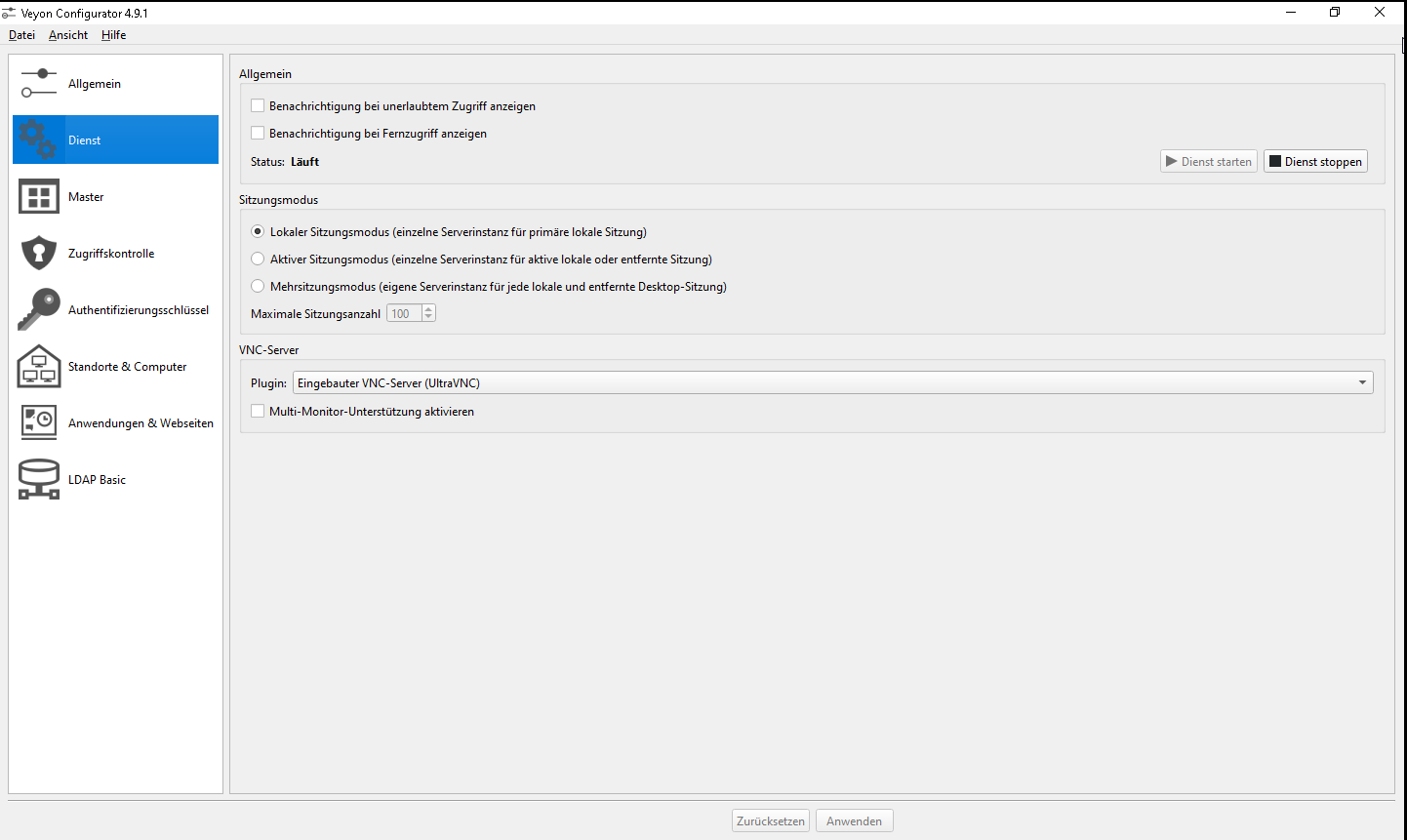
Open Veyon Configurator
Launch the Veyon Configurator on the Windows client (teacher PC) with administrator privileges. -
Navigate to the Service Configuration
In the left-hand sidebar, select Service. -
Select the Built-in VNC Server Plugin
Choose Built-in VNC Server (UltraVNC) from the list of available plugins.Important: The following option only appears when this specific plugin is selected, as it pertains to the included UltraVNC server.
-
Disable Multi-Monitor Support
Scroll down until you find the Enable multi-monitor support option.
Uncheck this setting to disable it.
Explanation
“On client computers, it is usually desired to see all screens. On master computers, this option can be disabled to transfer only the contents of the first screen in demo mode. This way, the teacher does not have to share the entire desktop. Sharing less display data also improves performance.”
By disabling this option, the VNC server—responsible for screen sharing—captures only the primary display of the teacher’s workstation. The second monitor remains private, allowing the teacher to use it for notes or administration tasks without broadcasting it to the students.
Finalize the Configuration
- Click Apply in the Veyon Configurator to save the changes.
- Restart the Veyon Service on the teacher’s PC. (A full reboot ensures that the new configuration is applied correctly.)
After completing these steps, sharing the screen through the UCS Portal and the Computer Room tile will only display the primary monitor to students, preventing reduced visibility caused by multi-monitor sharing.
Outcome
- Only the primary screen is visible to students during screen sharing.
- The teacher can use the second monitor privately.
- Display scaling and readability for students are significantly improved.