Create SMB Share like Windows Share with AD Group Permissions

Hi all,

I want to create a samba share with microsoft windows like permissions. I hope you can help me achieve this.

Here is my system environment:

  • UCS Active Directory compatible DC (dc01)
  • AD group share_test01_ro
  • AD group share_test02_rw
  • User testuser, member of share_test01_ro
  • User testadmin, member of share_test01_rw

My final goal is the following:

  • Create a samba share named “test01” on dc01 under /data/shares/test01
  • Access rights with read/write permissions only for members of group share_test01_rw
  • Access rights with only read permissions only for members of group share_test01_ro
  • All other user has no permissions to access the share
  • User with write access are not allowed to change permissions over SMB protocol on a windows client. So changing access for users or groups over preferences/security dialog is forbidden

Is it possible to achieve this with an UCS System?

I tried different settings over the univention management console (web gui | domain | shares), but no setting helped.
Either the user with read/write access did not have write permissions, or the folder could be created but not deleted. Or write access worked, but the user could also change the access permissions.

It would be great if anyone had any ideas.

Thanks for helping
Hi
I use a Windows VM to set the permissions.

Regards Ben

Hi Ben,

thanks for your hint.

Can you tell me, which settings do you set in the ucs web gui?

I’ve found these instructions for samba.
https://wiki.samba.org/index.php/Setting_up_a_Share_Using_Windows_ACLs

The permissions are set over a windows client.
But if I set all as described, my read/write test user is able to modify permissions at the windows client in the properties dialog of the share.

Thank you

I solved the problem for me.
Here is what I have done to get it working.

  1. create share
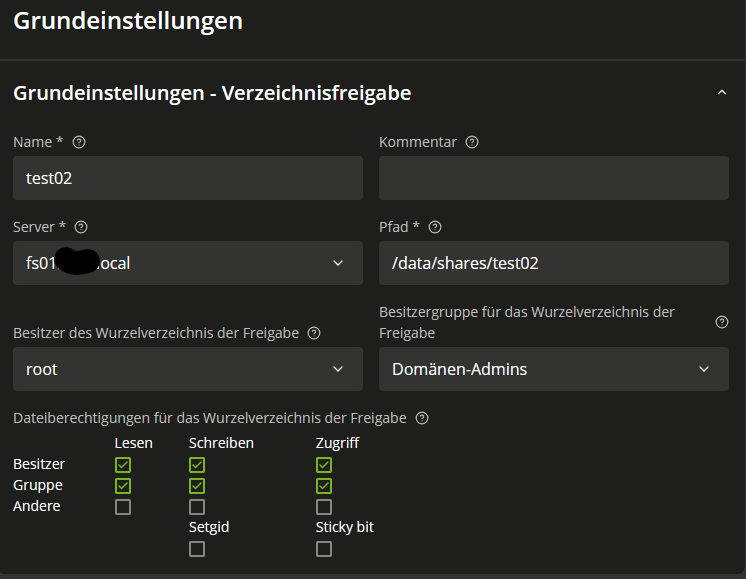
    UCS Web GUI: Domain → Shares → Create new share


    under samba tab:
    grafik

  2. set permissions
    use domain joined windows client pc
    open compmgmt.msc as domain administrator and connect to server with configured share
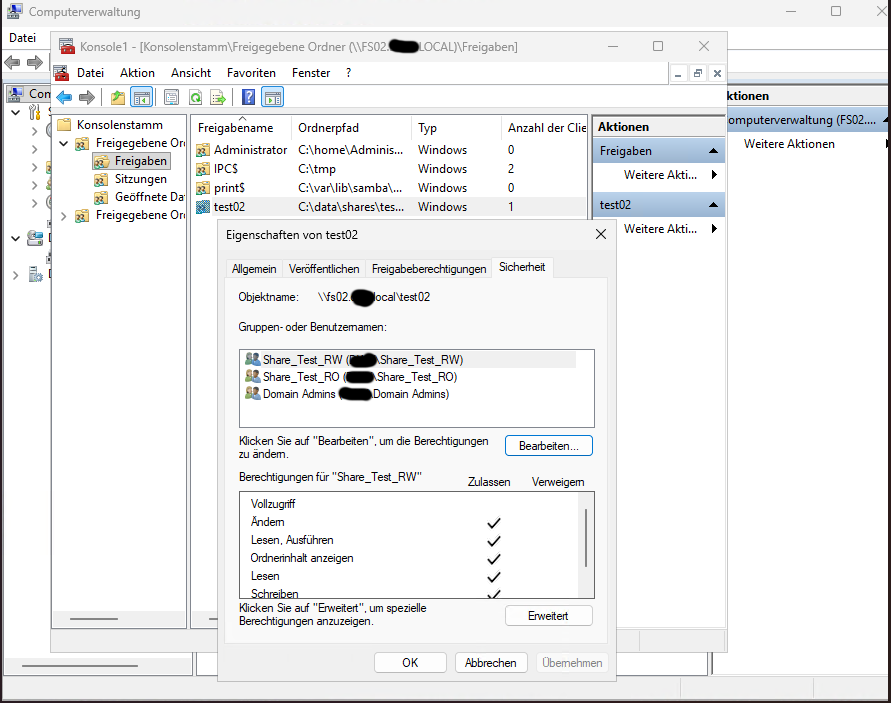
    go to shares and open properties of your share and set permissions:

that’s all.
My problem was, that I had forgotten to activate inheritance for new folders and was always testing with a subfolder of the share.

Now it works as expected.

  • read only users: only read files and folders
  • read/write: read/write/delete files/folders but not allowed to modify permissions
  • domain admins: full access